This article will walk through how to reissue or refund payment when a vendor does not receive the funds. It’s important to note that when there is an issue with a payment (ACH Returns or Check Returns), MakersHub gives you two options: Reschedule the Payment or Request a Refund.
The following article breaks out each scenario you may encounter with the two options: to Reschedule the Payment or Request a Refund. Select your error and desired result to see the steps to either refund or reissue the payment.
ACH Returned: No Account Found
How to Update the Payment Details and Reschedule the Payment
This error indicates that the account listed in the payment method does not exist for the routing number shared. To reprocess the payment, you need to archive the old payment method and add a new payment method before issuing payment.
Step 1: Archive the Old Payment Method
To update vendor payment information you will need to remove the old, incorrect payment information and add in the new vendor payment details.
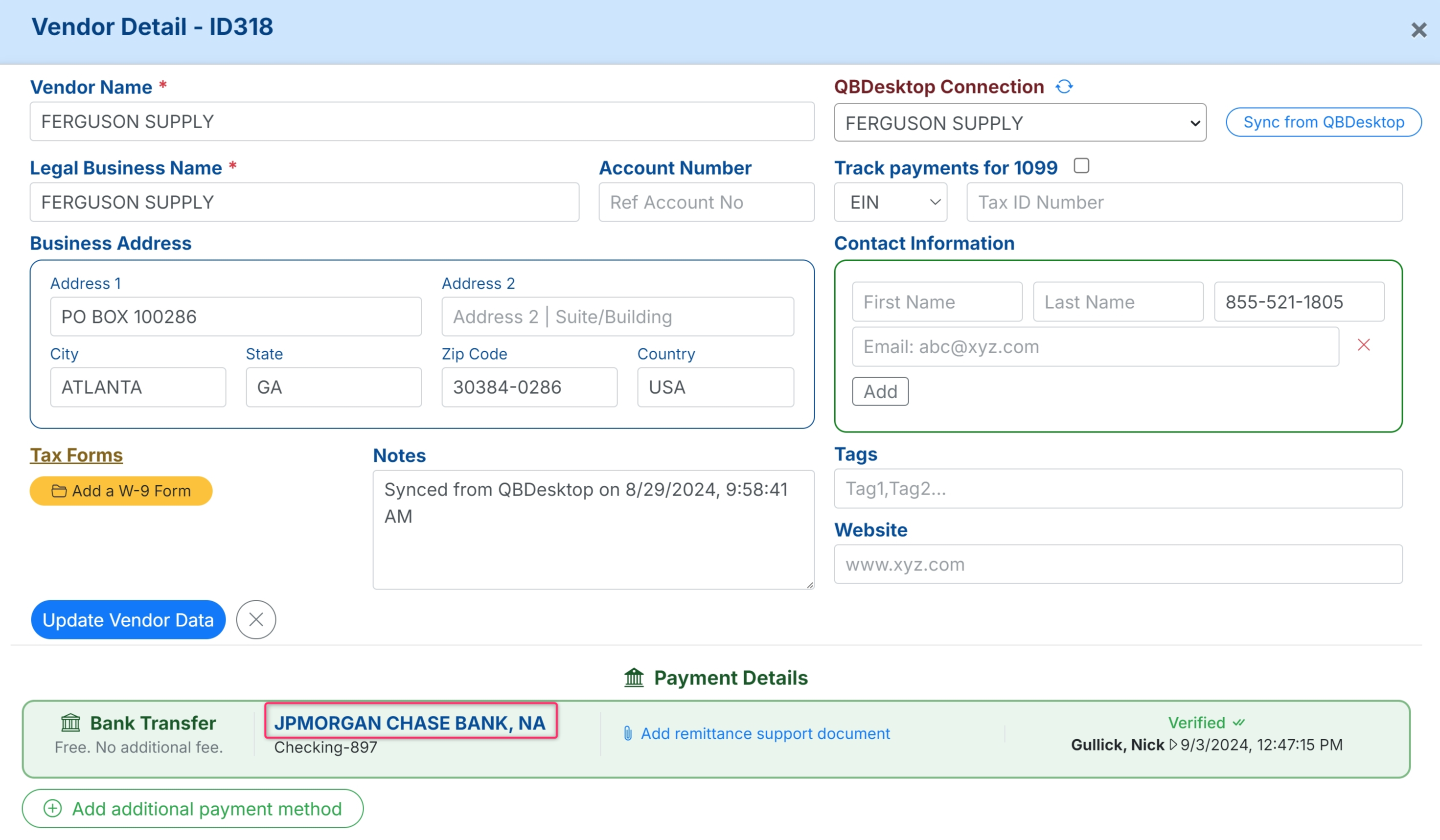
Navigate to the Vendor List and click on the Vendor Name whose details need to be updated. Select the Current Bank Details on the bottom of the Vendor Detail page.
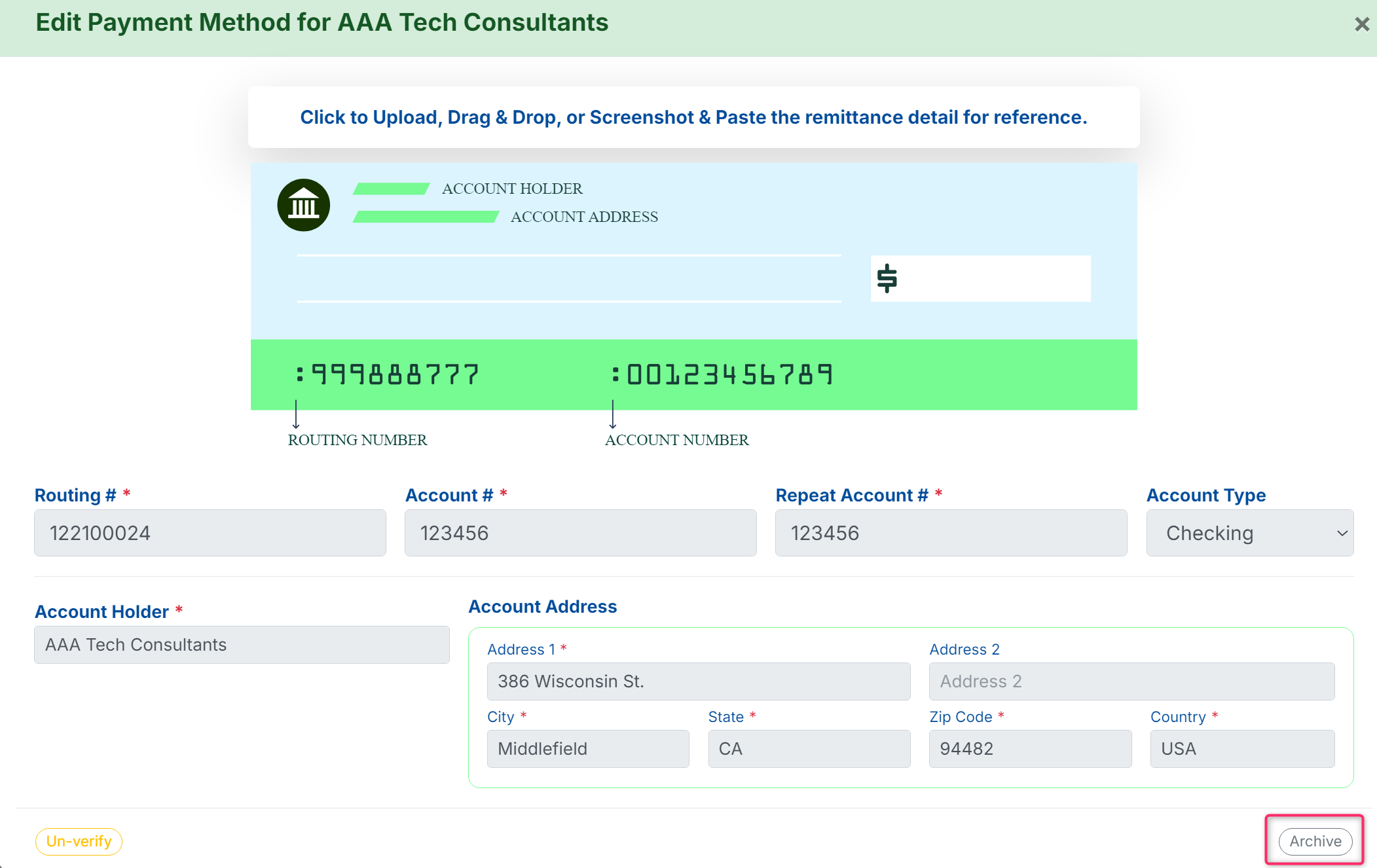
Click Archive in the bottom right corner to remove the current, incorrect payment information.
Step 2: Add a New Payment Method
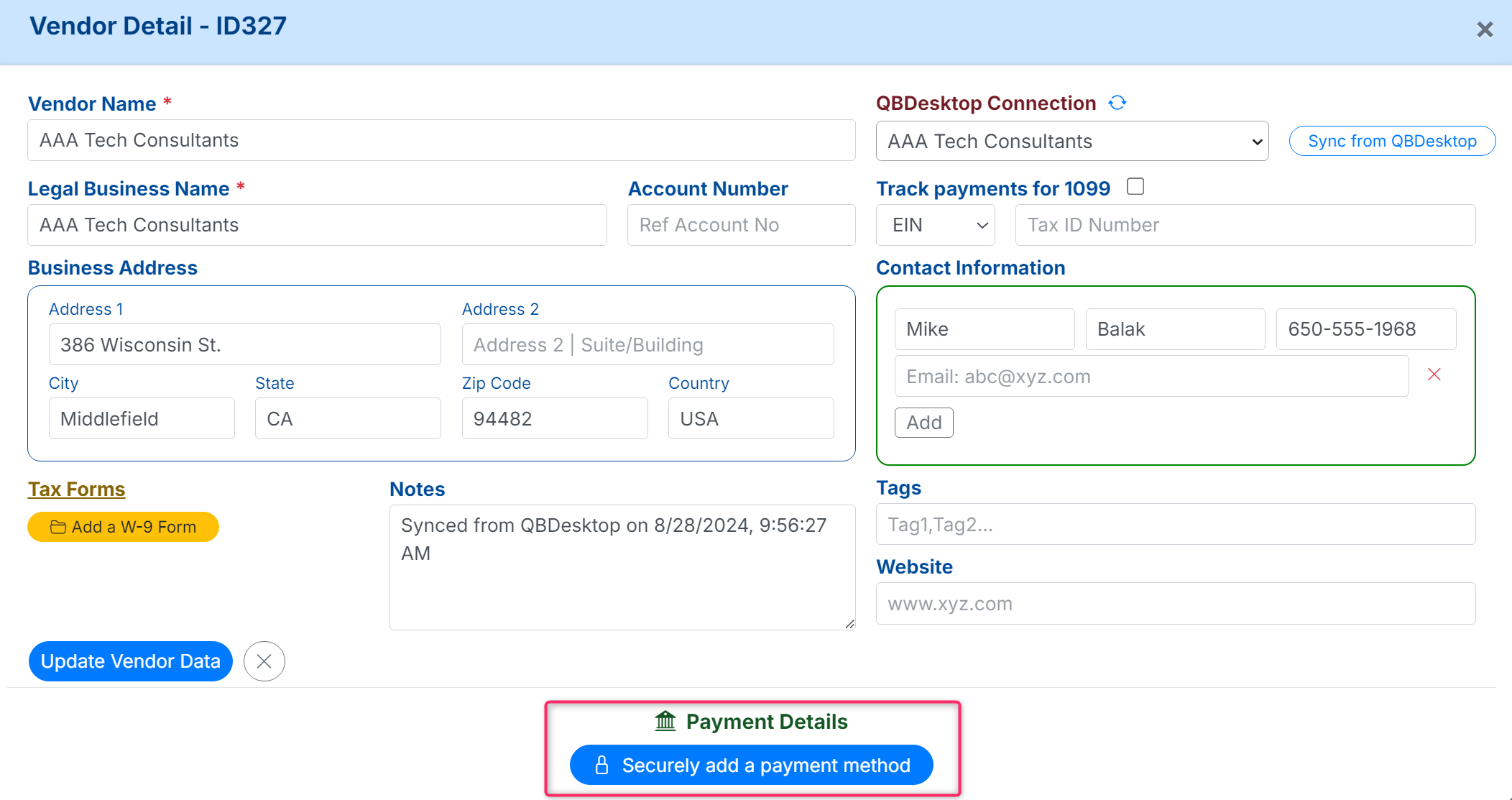
Click Securely add a payment method to add the new payment method. Then you will need to verify the payment method.
Step 3: Reschedule the Payment
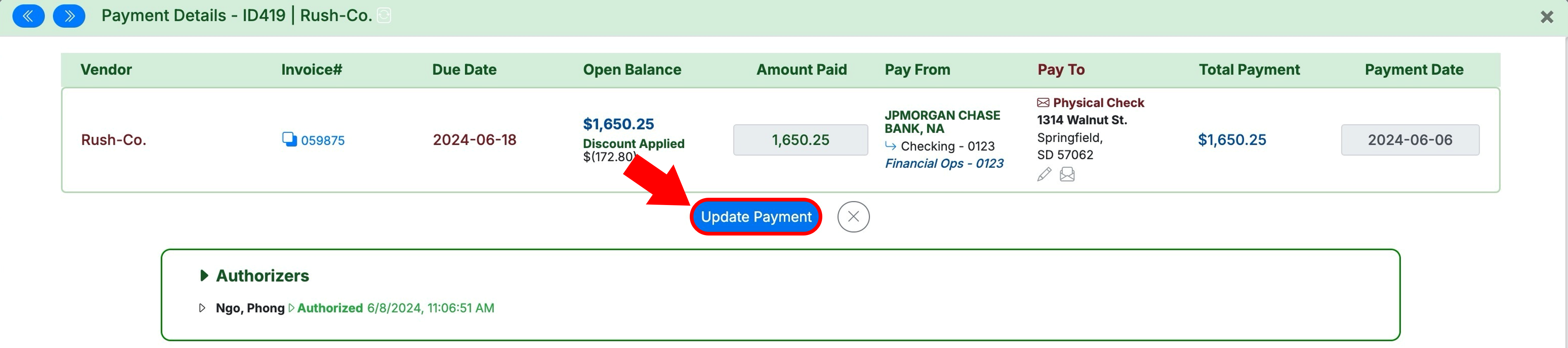
Navigate back to Archive>Payments and select the payment you want to reschedule. Under Pay To, select the new payment method from the dropdown.
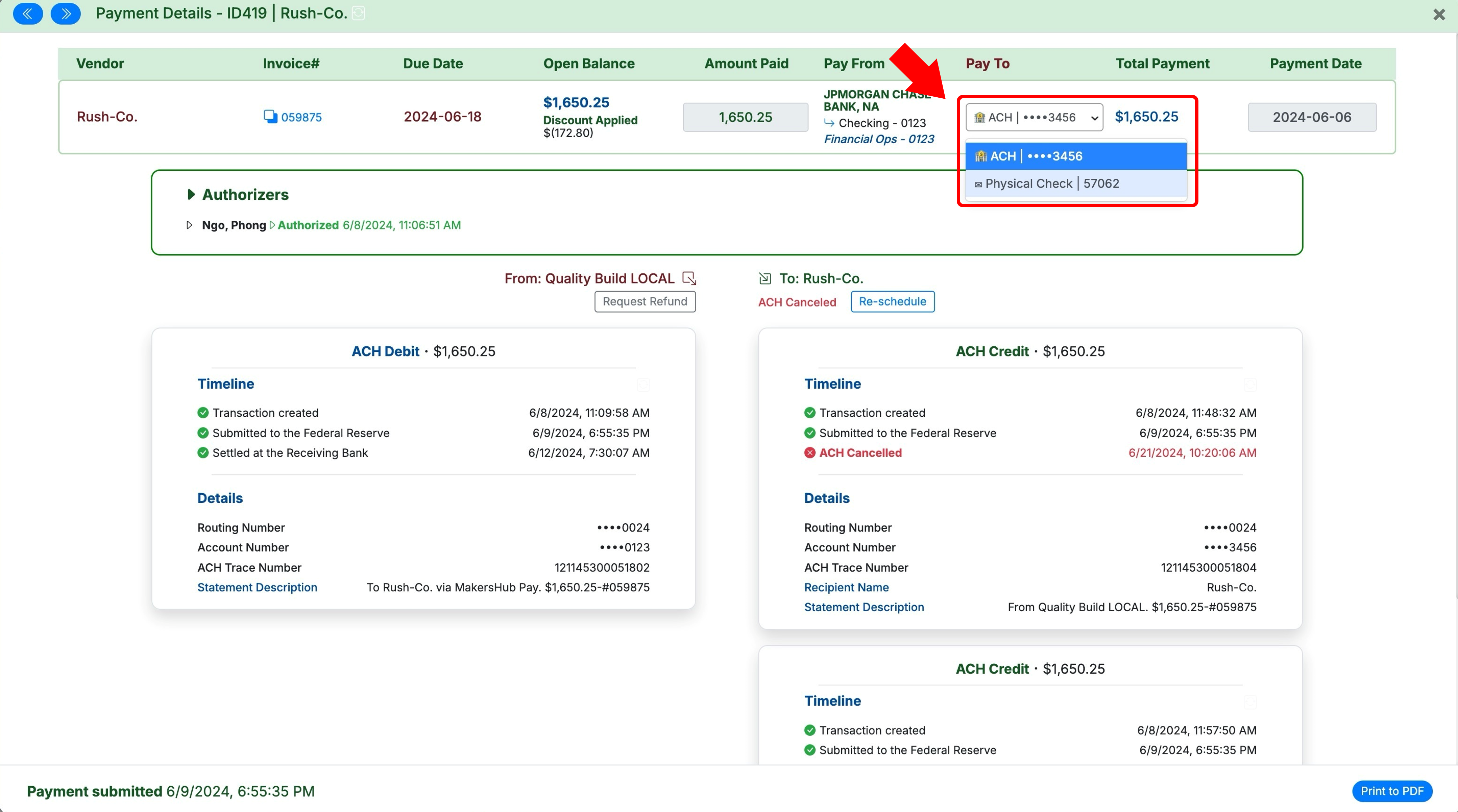
Click Update Payment.
Please Note: Updating the Pay To and selecting Update Payment are necessary to send it to the NEW ADDRESS. If this is not done, the funds could be sent back to the incorrect payment method.
.png)
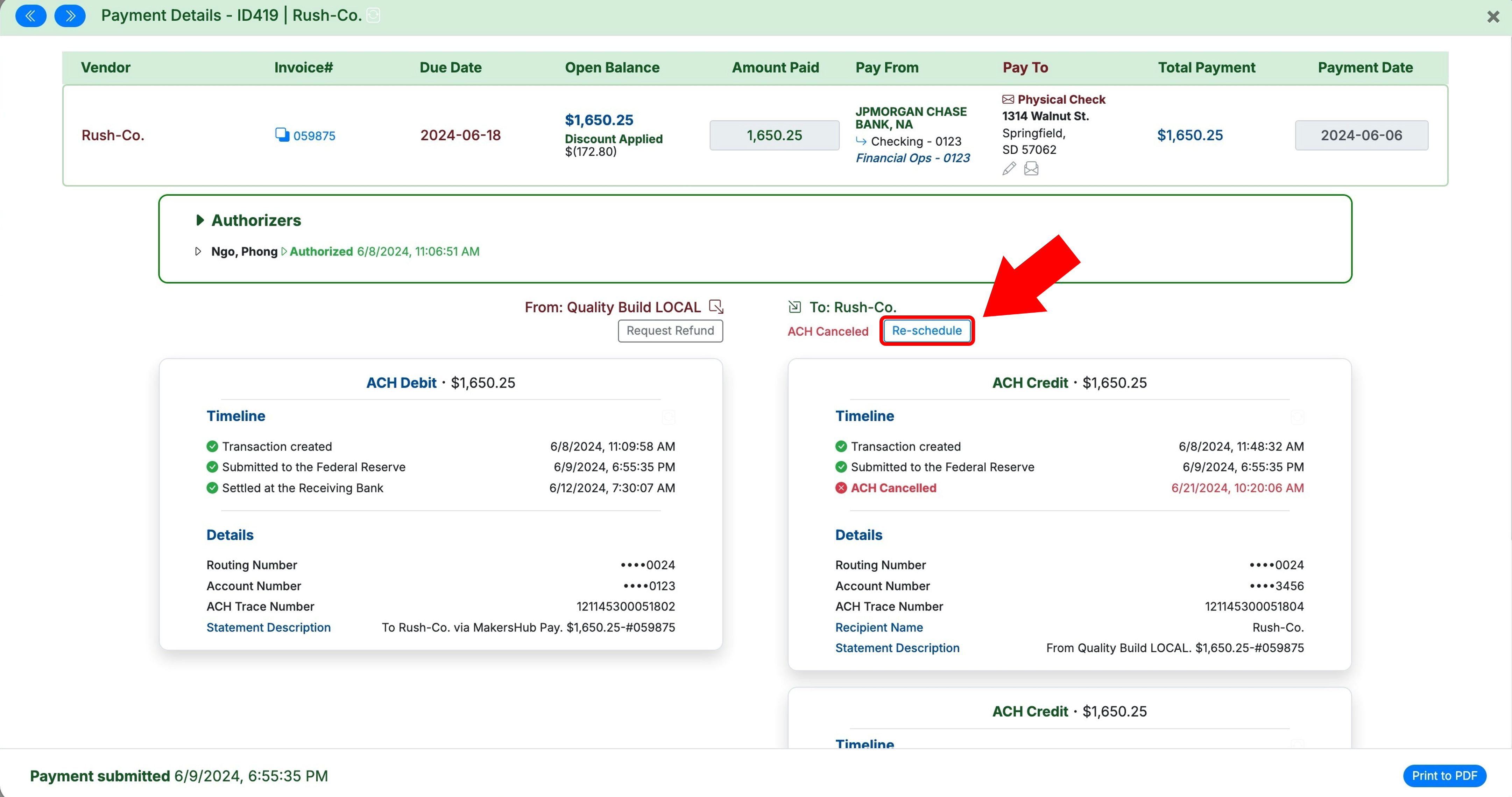
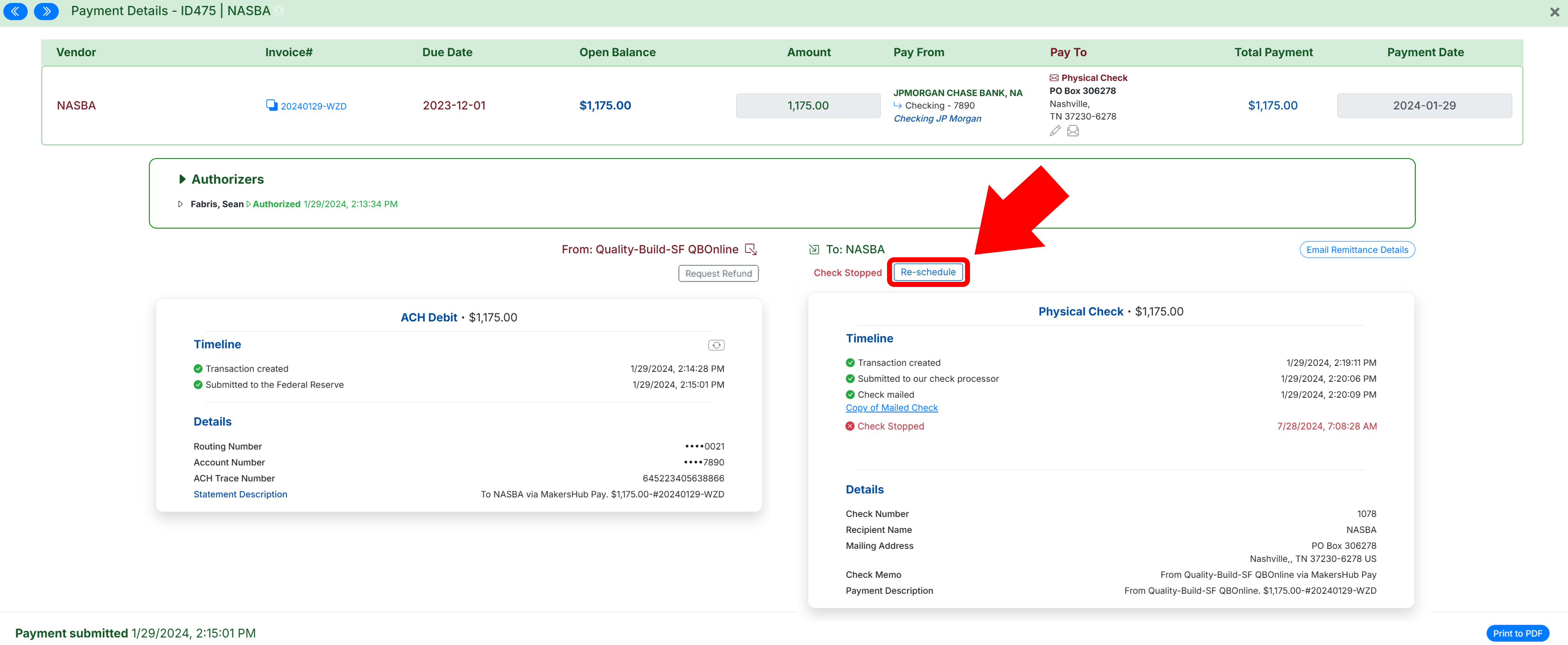
Click Re-schedule and select the desired payment speed.
How to Request a Refund
This indicates that the account listed in the payment method does not exist for the routing number shared. To request a refund, please follow the instructions below.
Step 1: Archive the Old Payment Method
Navigate to the Vendor List and click on the Vendor Name whose details need to be updated. Select the Current Bank Details on the bottom of the Vendor Detail page.
.png)
Click Archive in the bottom right corner to remove the current, incorrect payment information.
.png)
Step 2: Request a Refund
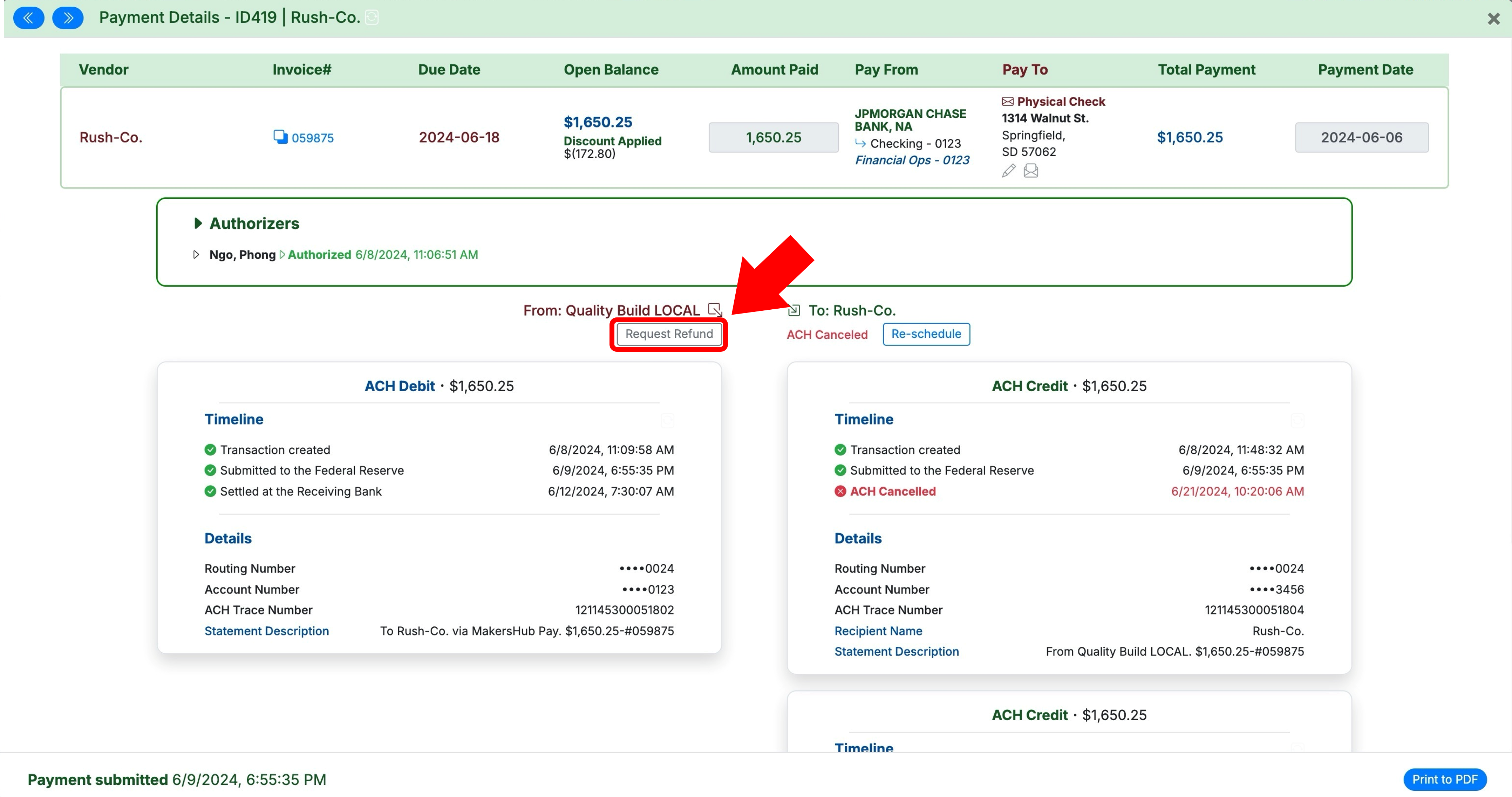
Navigate back to the payment. Select Request Refund above the ACH Debit. Click Confirm Requesting Refund.
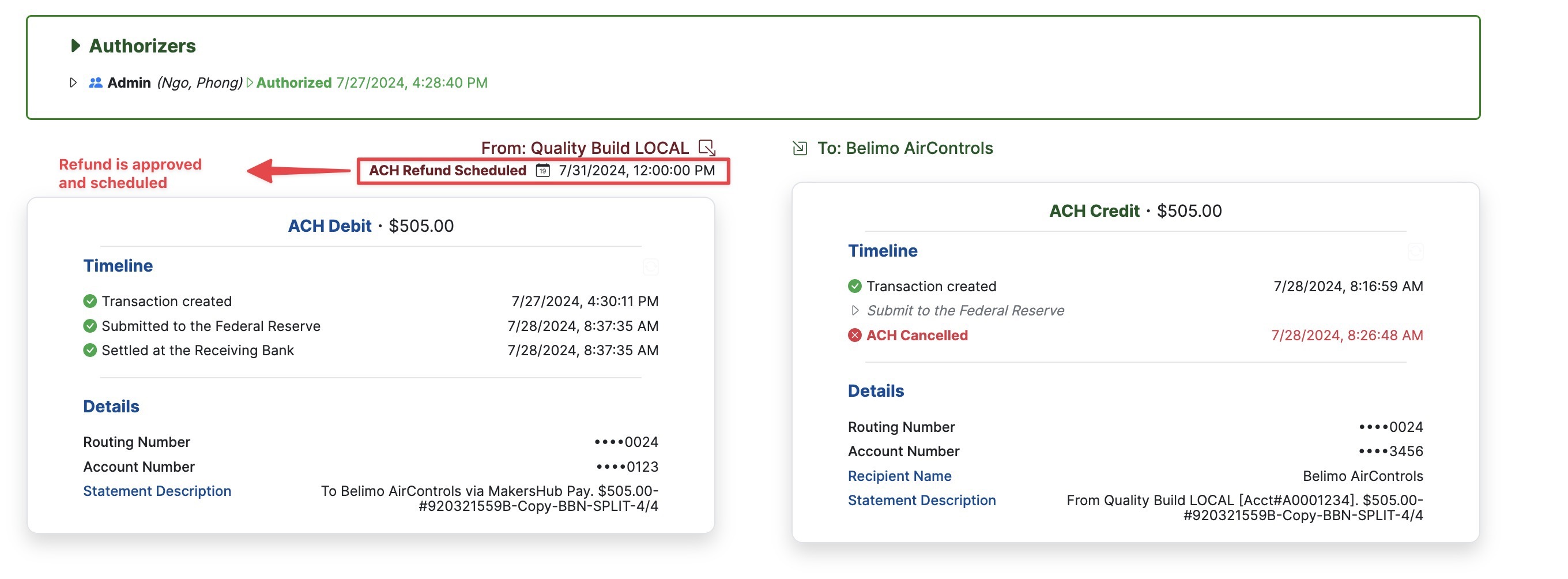
Shortly after, the refund will appear as scheduled and sent back to your bank account at the next ACH window.
ACH Returned: Account Closed
How to Reschedule Payment to the Same Account
This indicates that when the funds were sent to the vendor, the account was closed and thus could not receive the funds. Please verify with the vendor that they have re-opened the account. Once you confirm that the account is open and able to receive ACH credits, the next step is to reschedule the payment by clicking the Re-schedule button.
.png)
Reschedule Payment to New Bank Account
Should the account you are sending the funds to be closed, you can always add a new payment method, update the pay to, and reschedule the payment.
Step 1: Archive the Old Payment Method
To update vendor payment information you will need to remove the old, incorrect payment information and add in the new vendor payment details.
Navigate to the Vendor List and click on the Vendor Name whose details need to be updated. Select the Current Bank Details on the bottom of the Vendor Detail page.
.png)
Click Archive in the bottom right corner to remove the current, incorrect payment information.
.png)
Step 2: Add a New Payment Method
Click Securely add a payment method to add the new payment method. Then you will need to verify the payment method.
.png)
Step 3: Reschedule the Payment
Navigate back to Archive>Payments and select the payment you want to reschedule. Under Pay To, select the new payment method from the dropdown.
Click Update Payment.
Please Note: Updating the Pay To and selecting Update Payment are necessary to send it to the NEW ADDRESS. If this is not done, the funds could be sent back to the incorrect payment method.
Click Re-schedule.
ACH Debit Returned: Corporate Customer Advises Not Authorized
Corporate Customer Advises Not Authorized
In this scenario, MakersHub is prevented from debiting your account because of protections put in place on your account preventing unknown debits or someone received notification of the debit attempt from MakersHub and unauthorized the transaction.
When this occurs, please reach out to your bank to allow the debits from MakersHub and reach out to support@makershub.ai informing us of this change, and we will retry the debits so that your vendor can get paid.
Check Mailed to the Correct Address But Not Cashed
Stop and Reissue the Check
Please find the instructions below on how to reissue a check when it was sent to the correct address but was not cashed by the vendor.
Step 1: Stop the Check
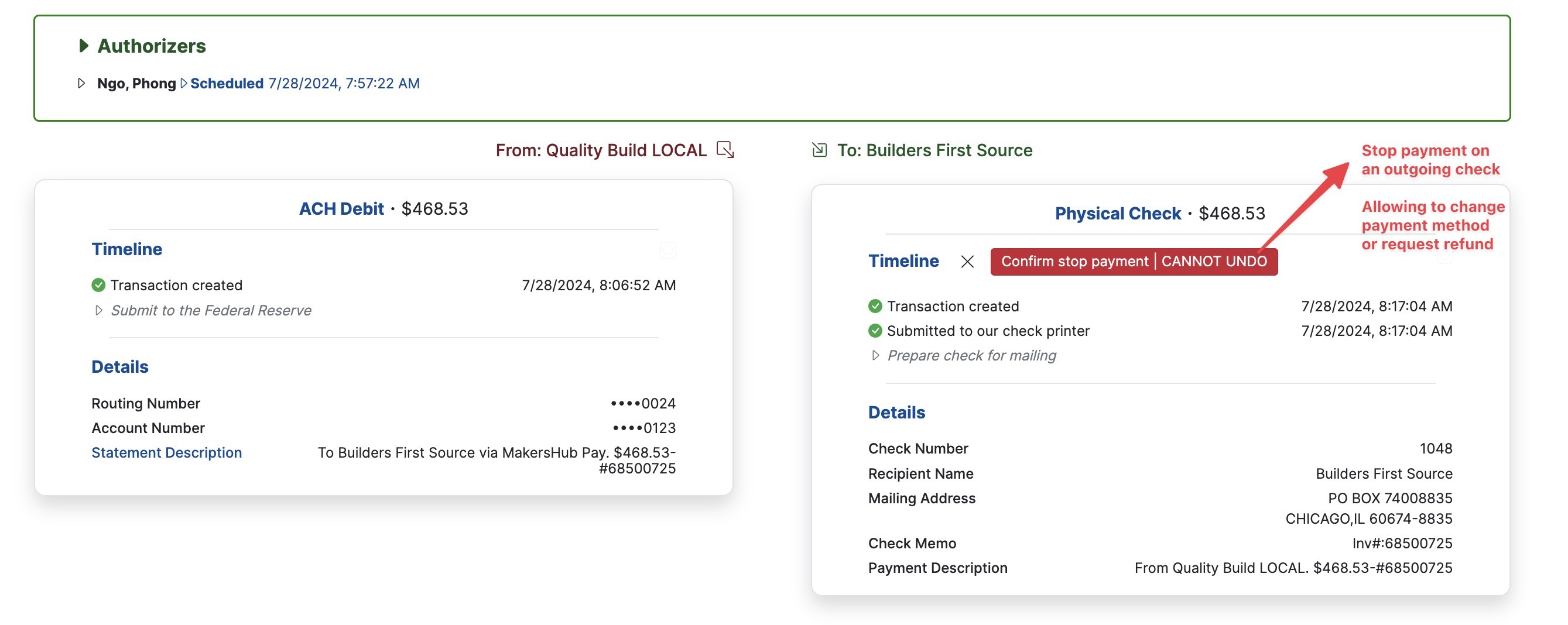
To stop an outgoing check, navigate to the payment by going to the Archive>Payments. Under the Physical Check you can issue a stop on the check. Be sure to click Confirm stop payment.
Step 2: Reschedule the Check
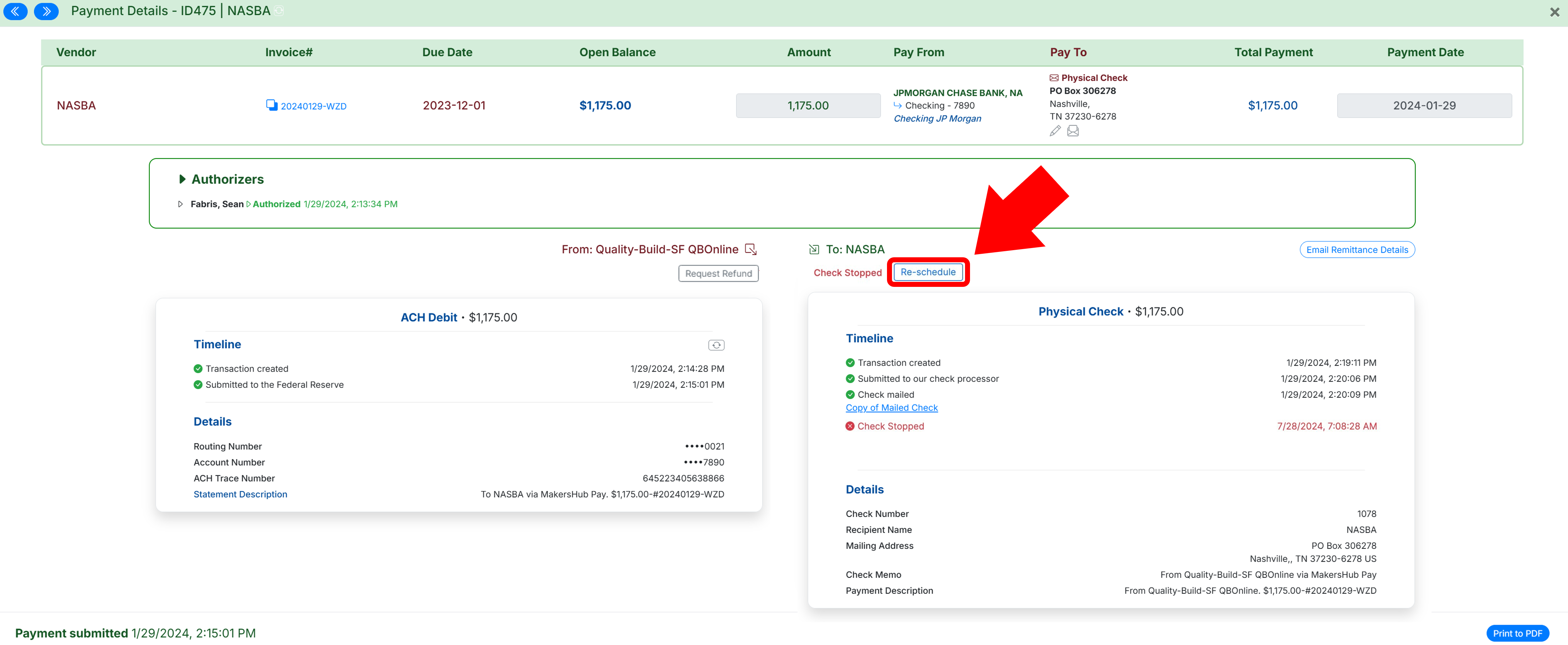
Once the old check has been stopped, you can have it sent back to the original address by clicking the Re-schedule button.
Stop and Request a Refund
In the case that a check was delivered to the correct address and you paid the bill outside of MakersHub, you can stop the check and request a refund.
Step 1: Stop the Check
To stop an outgoing check, navigate to the payment by going to the Archive>Payments. Under the Physical Check you can issue a stop on the check. Be sure to click Confirm stop payment.
Step 2: Request a Refund
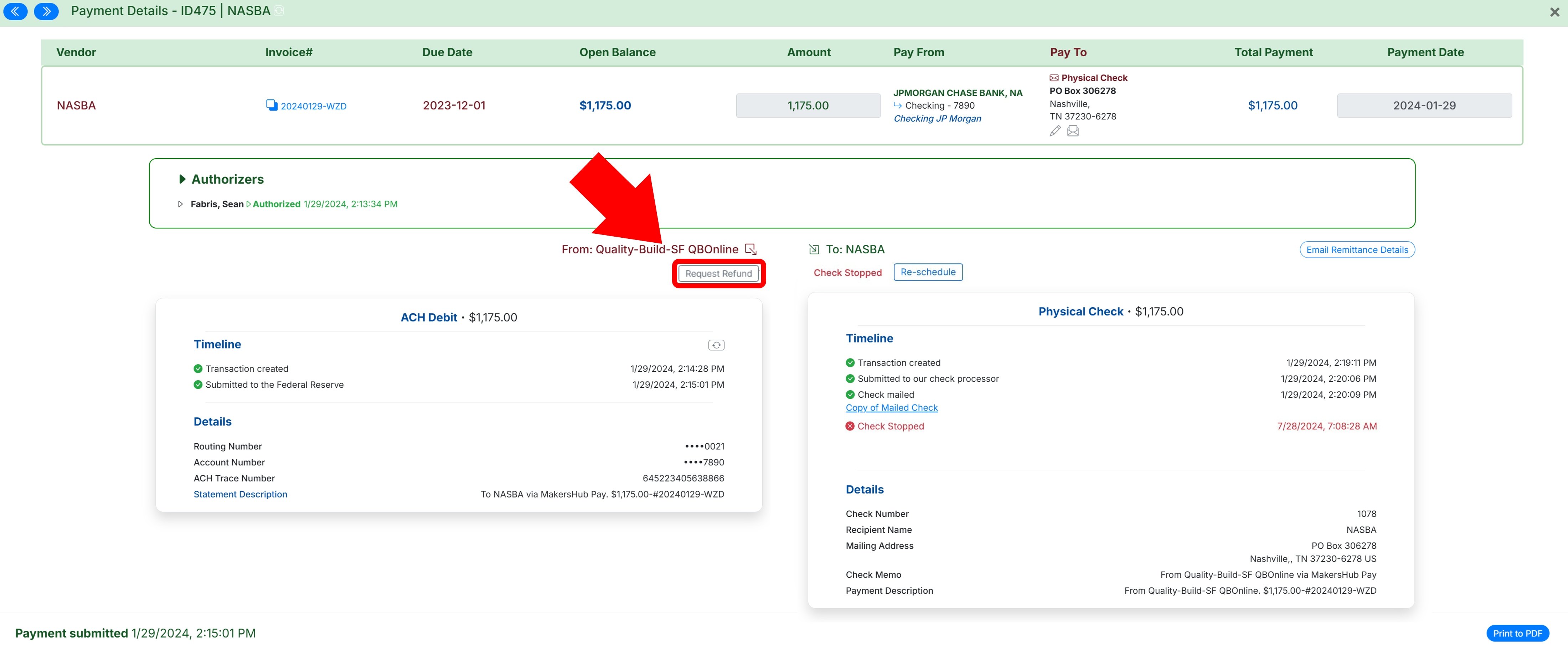
Once the check is stopped, the next step is to click Request Refund above the ACH Debit Tile.
Additionally: Review the payment address with the vendor to confirm it is correct for future checks issued.
Check Was Mailed to the Wrong Address
Stop and Reissue the Check
When a check is delivered to the wrong address and needs to be reissued to an updated address, there are a few actions you need to take:
Step 1: Remove the Old Payment Method
To update vendor payment information you will need to remove the old, incorrect payment information and add in the new vendor payment details.
Navigate to the Vendor List and click on the Vendor Name whose details need to be updated. Select the Current Bank Details on the bottom of the Vendor Detail page.
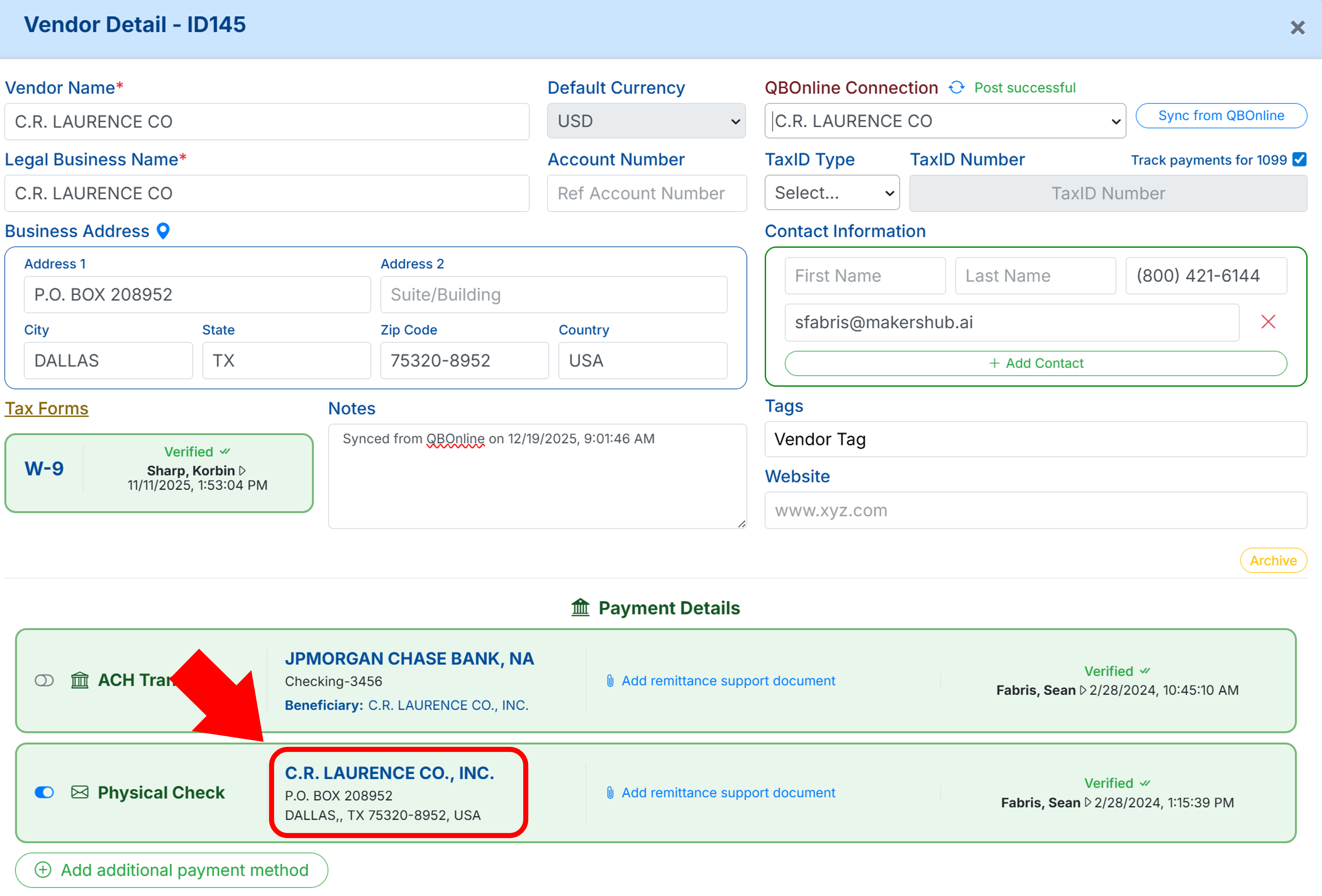
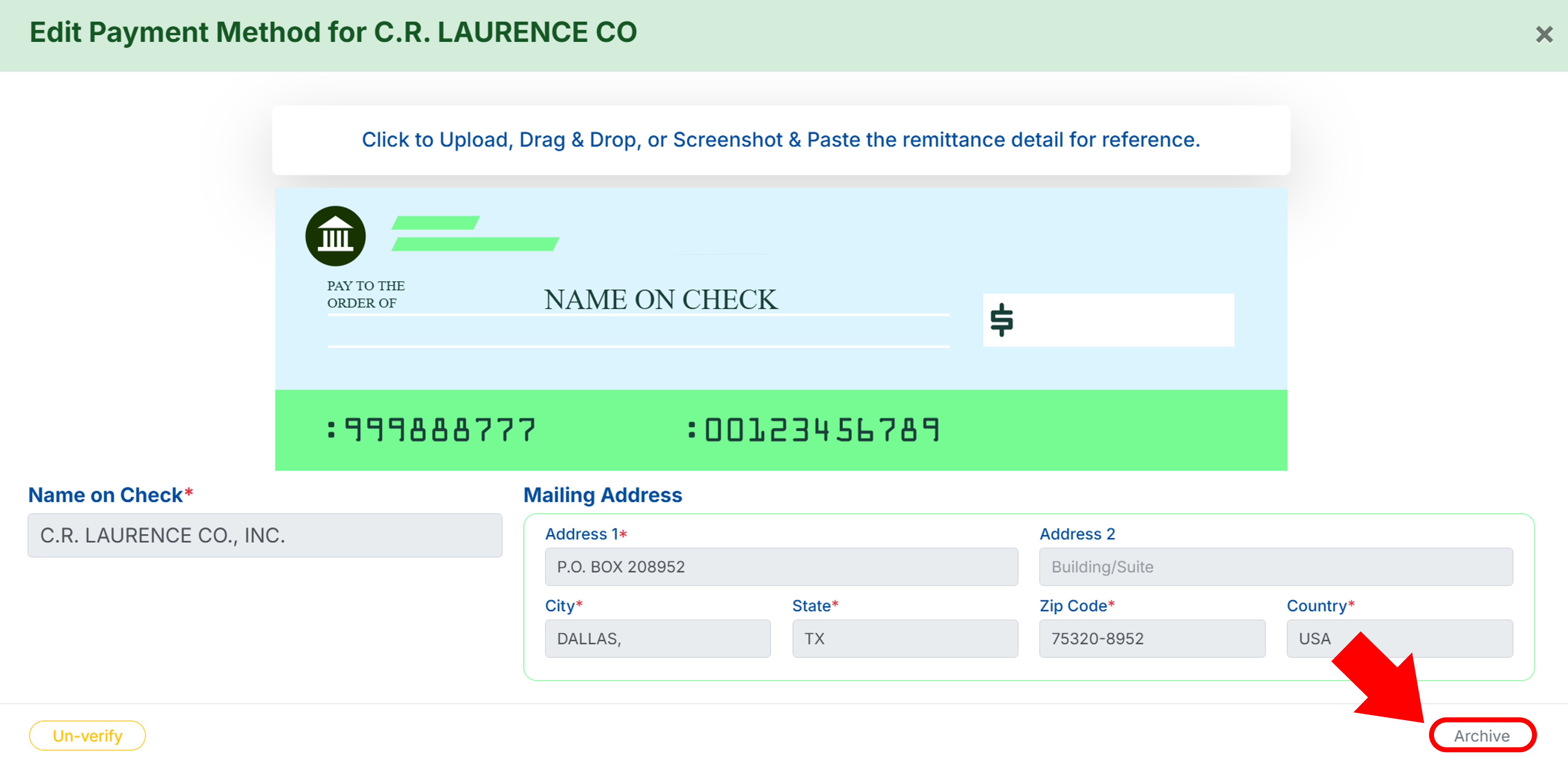
Click Archive in the bottom right corner to remove the current, incorrect payment information.
Step 2: Add and Verify a New Payment Method
Once the old payment method is archived, you can select Securely Add a Payment Method to add the updated vendor address. Be sure to verify the payment.
.png)
Step 3: Stop the Check
To stop an outgoing remittance, navigate to the payment by going to the Archive > Payments. Under the Physical Check you can issue a stop on the check. Be sure to click Confirm stop payment.
.png)
Step 4: Update the Pay To Address and Reissue Payment
Under Pay To update the payment method to the new address you added.

Then select Update Payment.
Please Note: Updating the Pay To and selecting Update Payment are necessary to send it to the NEW ADDRESS. If this is not done, the funds could be sent back to the incorrect payment method.
Click Re-schedule.
Stop and Request a Refund
When a check is delivered to the wrong address and needs to be stopped and a refund requested, there are a few actions you need to take:
Step 1: Remove the Old Payment Method
To update vendor payment information you will need to remove the old, incorrect payment information and add in the new vendor payment details.
Navigate to the Vendor List and click on the Vendor Name whose details need to be updated. Select the Current Bank Details on the bottom of the Vendor Detail page.
Click Archive in the bottom right corner to remove the current, incorrect payment information.
Step 2: Stop the Check
To stop an outgoing remittance, navigate to the payment by going to the Archive > Payments. Under the Physical Check you can issue a stop on the check. Be sure to click Confirm stop payment.
Step 3: Request a Refund
Once the check is stopped, the next step is to click Request Refund above the ACH Debit Tile.
Additionally: Review the payment address with the vendor to confirm it is correct for future checks issued.