This guide walks you through connecting MakersHub with Xero. Once integrated, the two platforms maintain a 2-way sync where changes made in either system are automatically reflected in the other.
Step 1: Navigate to Integrations
In MakersHub, select the drop down next to your name in the top right corner. Go to Integrations and select Connect next to Xero.
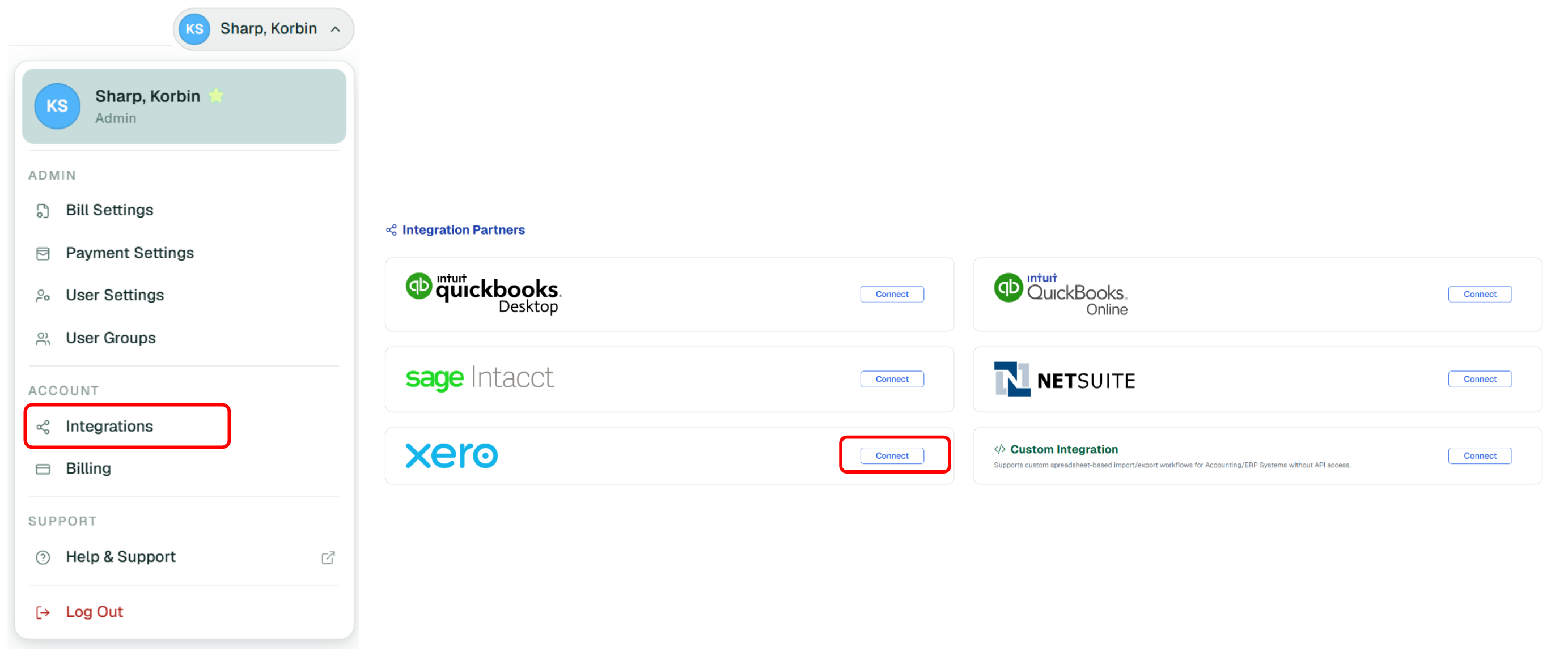
Select Connect to Xero.

Step 2: Follow the Instructions in Xero
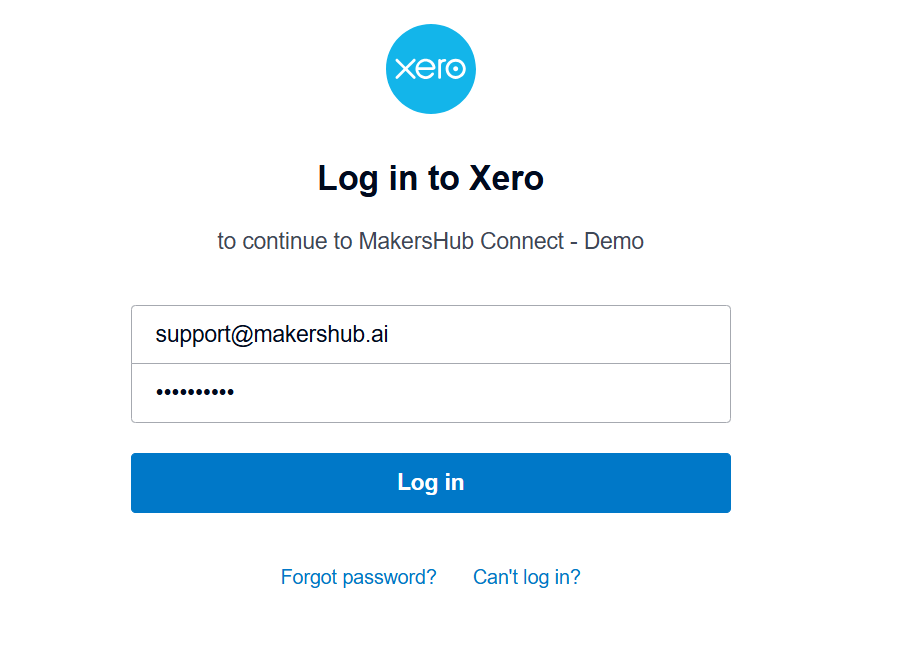
Log in to Xero.
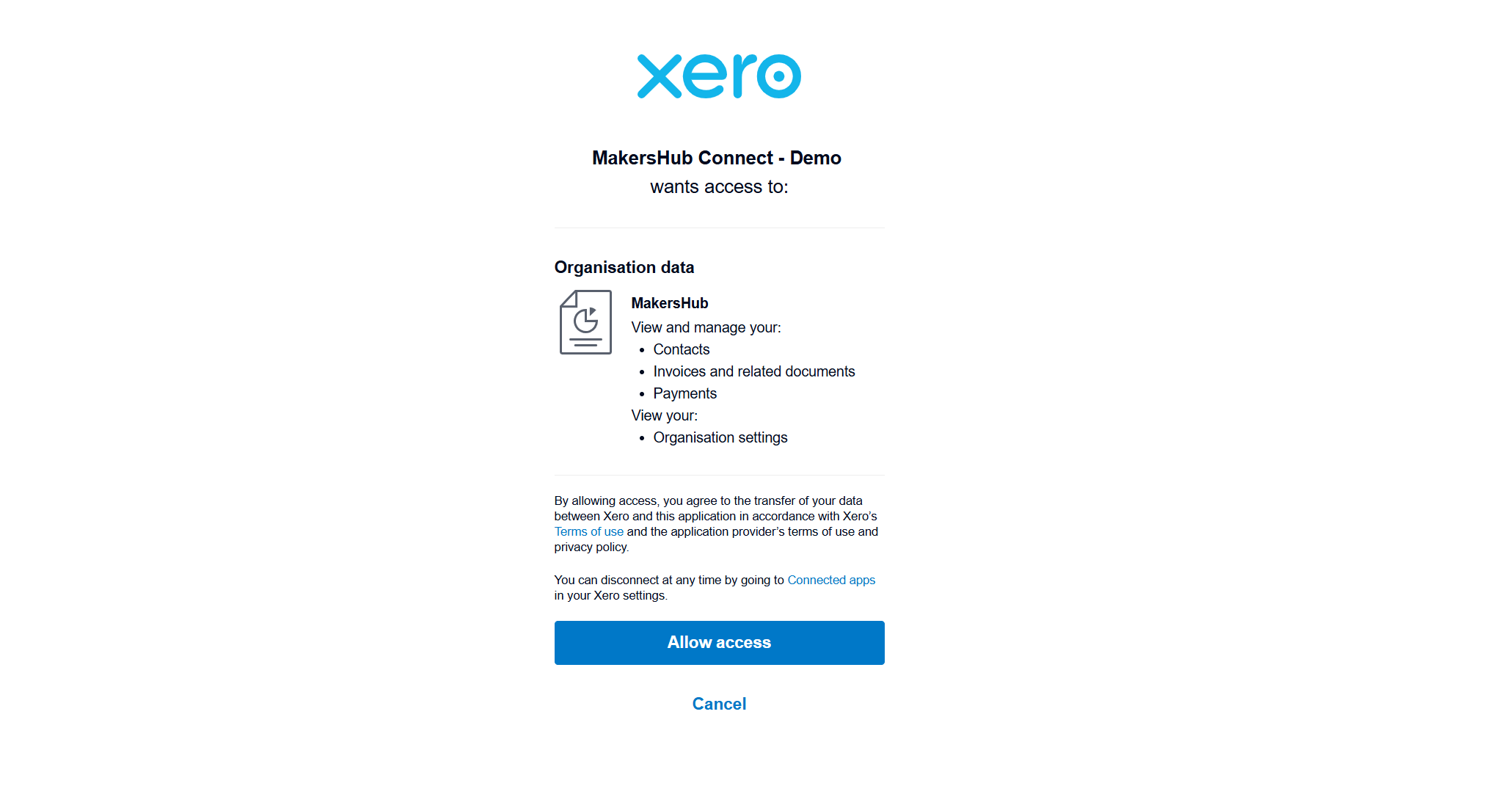
Allow Access for data transfer between MakersHub and Xero.
Step 3: Sync Data with Xero
Navigate back to MakersHub, then select Click here - complete the popup. Next, select Sync Data with Xero to initiate the first sync.

Step 4: Integration Complete
Once your data is synced with Xero, navigate to the Integration Data tab to verify that all records have been successfully imported. Use the dropdowns to expand and review the imported data. Toggle on Enable Custom Fields to map Tracking Categories under the Line-Level Custom Fields section.
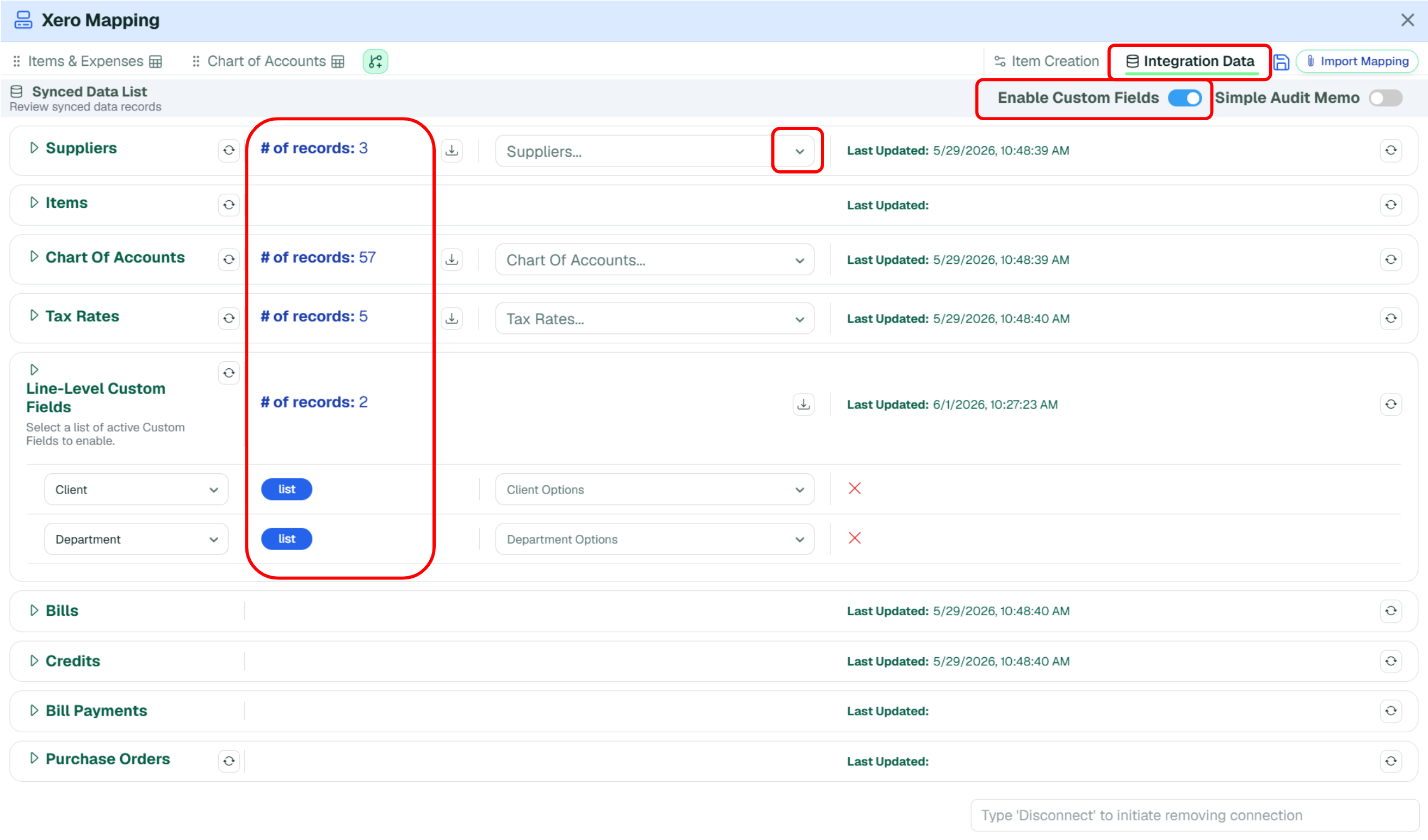
With the integration complete, you are ready to begin processing bills in MakersHub. See the following article for next steps: Process and Approve your First Bill.