This document will walk through how to configure auto-forwarding for a shared Office 365 inbox. Office 365 does not allow users to auto-forward directly to external inboxes, so to allow auto-forwarding, we need to create a distribution group that contains the address of where we want to forward emails.
Locate Your AP Inbox
Navigate to your name in the upper right corner, click Admin. Under the Bill Settings you can find your unique AP Inbox.
MakersHub Only Processes Valid Attachments
When processing emails, we look for attachments (pdf, jpeg, png, xls, doc, heic) or images within the email to process. At this time, we are not able to process bills included as text within the body of the email. In these situations, you may use the snipping tool and paste the bill into MakersHub.
.jpg)
Create Your MakersHub AP Inbox as a Contact
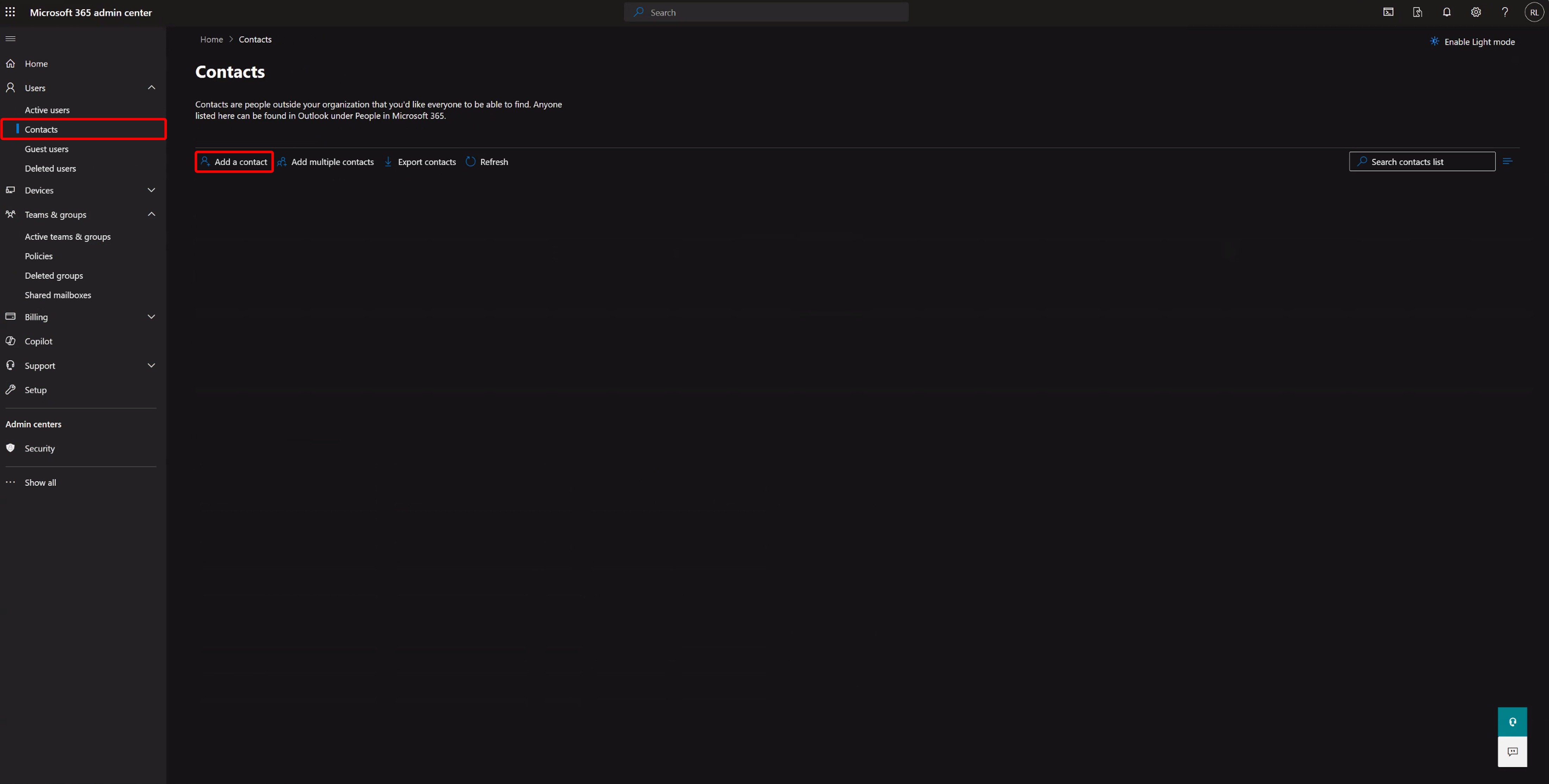
First Login to the Office365 Admin account. Navigate to Users>Contacts>Add a Contact
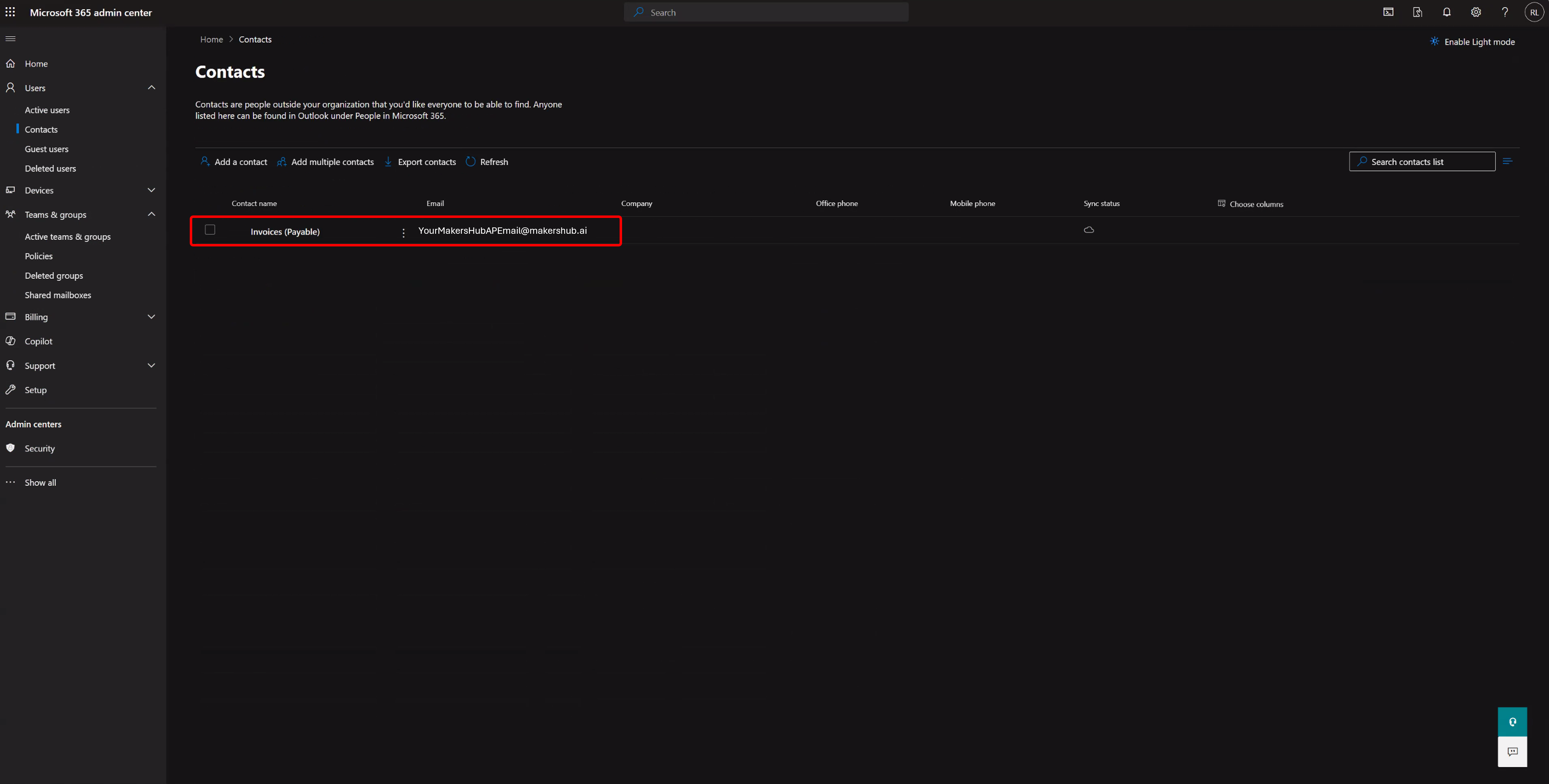
Create a contact with the external email address that you want to forward to (i.e. YourMakersHubAPEmail@makershub.ai).
Create a Distribution Group
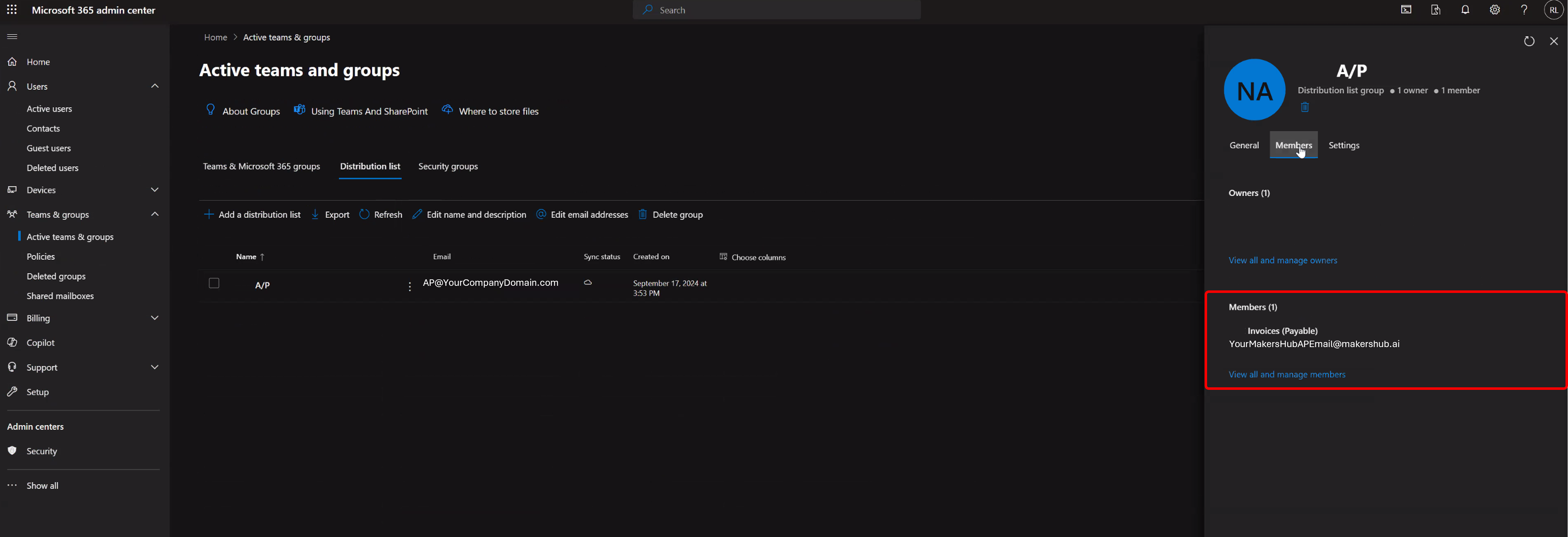
Next, go to Teams & groups>Active teams & groups>Distribution List
.png)
Create a Distribution Group and assign a Distribution Group email address (ex: AP@YourCompanyDomain.com).
.png)
Add the External Contact above as a member. You can add multiple contacts if needed.
Enable Auto Forwarding to the Distribution Group
Under Distribution List, click on the Distribution Group created above and go to Settings>Advanced Settings>Delivery Management. Select Senders inside and outside of my organization.
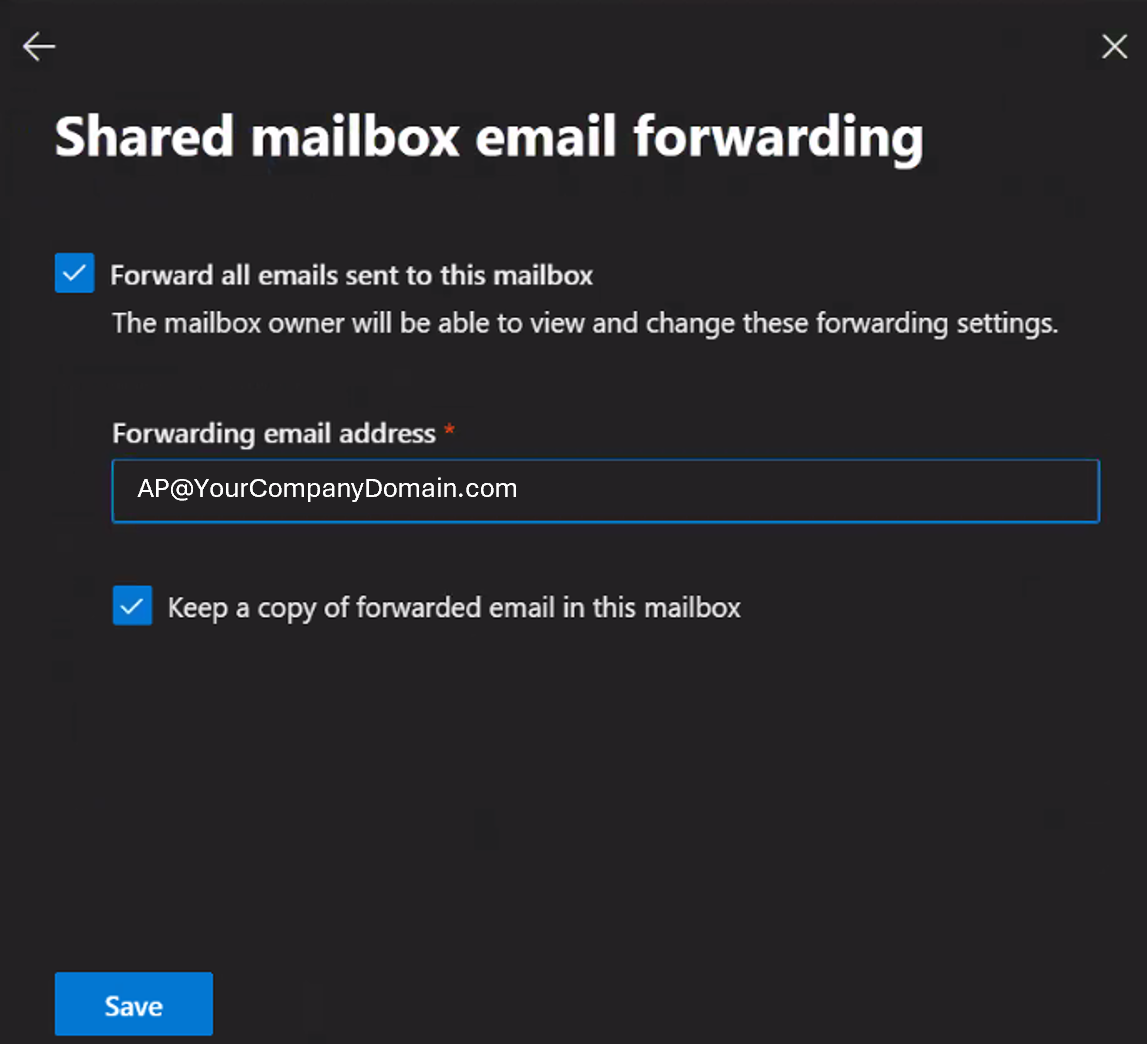
Go to Teams & groups>Shared mailboxes>Select the shared mailbox you want to set up Email Forwarding>Email Forwarding
Select Forward all emails sent to this mailbox. In the Forwarding email address, enter the Distribution Group email address set up above, select Keep a copy of forwarded email in this mailbox, and click Save.
Do NOT Forward to the External Address
The forwarding address needs to be the Distribution Group email address (i.e. AP@YourCompanyDomain.com) and NOT the external email address (i.e YourMakersHubAPEmail@MakersHub.ai). The external email address is a member of the distribution group.
Now, all emails will be automatically sent to AP@YourCompanyDomain.com and then forwarded to YourMakersHubAPEmail@MakersHub.ai.