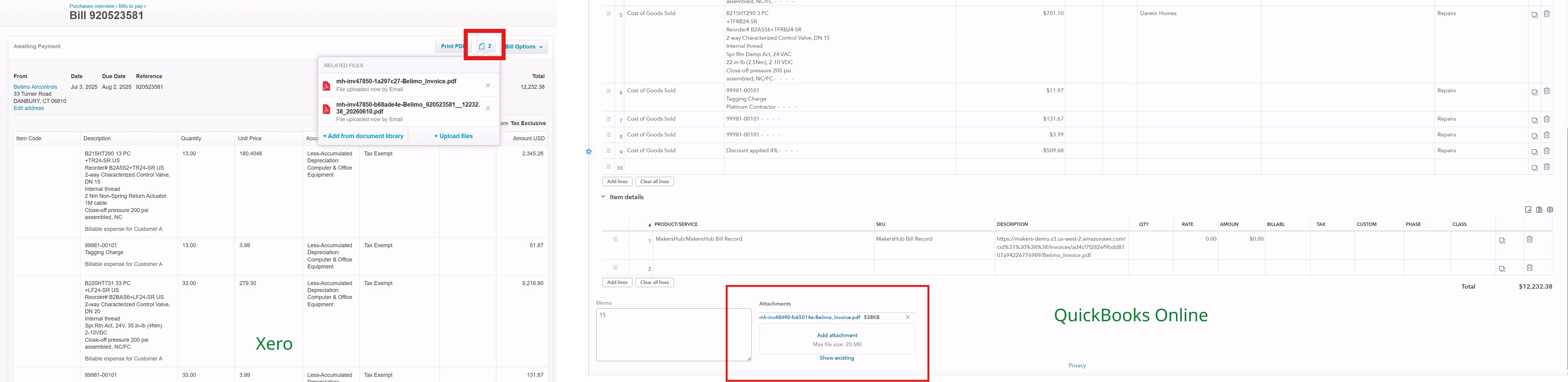
For every bill synced to Xero, MakersHub adds the invoice to the bill's History & Notes section. For every bill pushed to QuickBooks Online, MakersHub automatically creates a $0 line item called MakersHub Bill Record that holds the invoice. In both cases, the bill’s invoice appears as a link to a URL where the invoice PDF attachment can be accessed.
For users who would prefer to sync over the bill attachment as a PDF file, this article will walk through how to set up MakersHub to push over PDF attachments alongside the bill record.
Please note: The invoice link for any bill pushed through MakersHub remains accessible, and it will continue to work even if you stop using MakersHub.
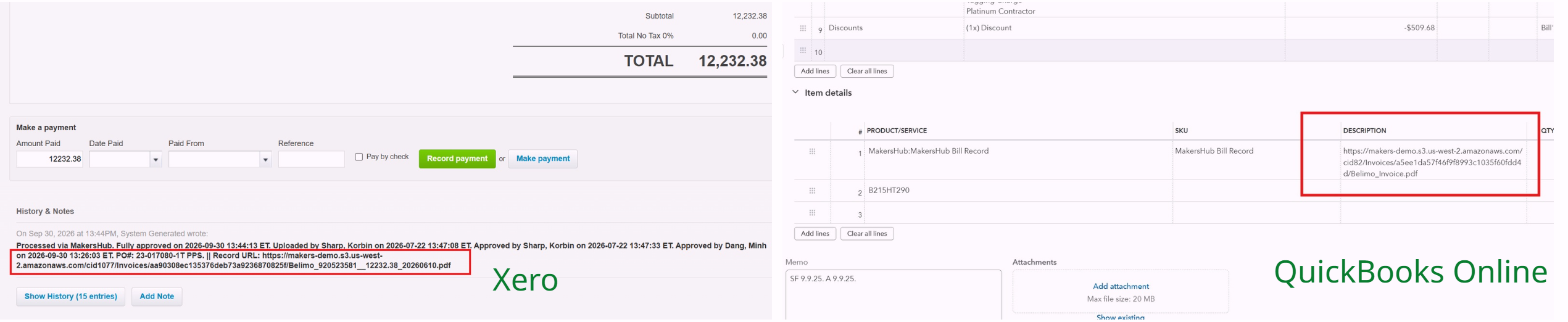
Please note (Xero only): If MakersHub is failing to push the invoice URL to the History and Notes section, Then Doucument URL to memo needs to be enabled within MakersHub Bill Settings.
Sign in to MakersHub. Go to Your Name and click Bill Settings.
.png)
Under the Bill Settings tab, Select Data Processing and toggle on the Document URL to Memo Field.
.png)
Syncing Bill as Attachments
Sign in to MakersHub. Go to Your Name in the upper right corner and click Integrations.
.png)
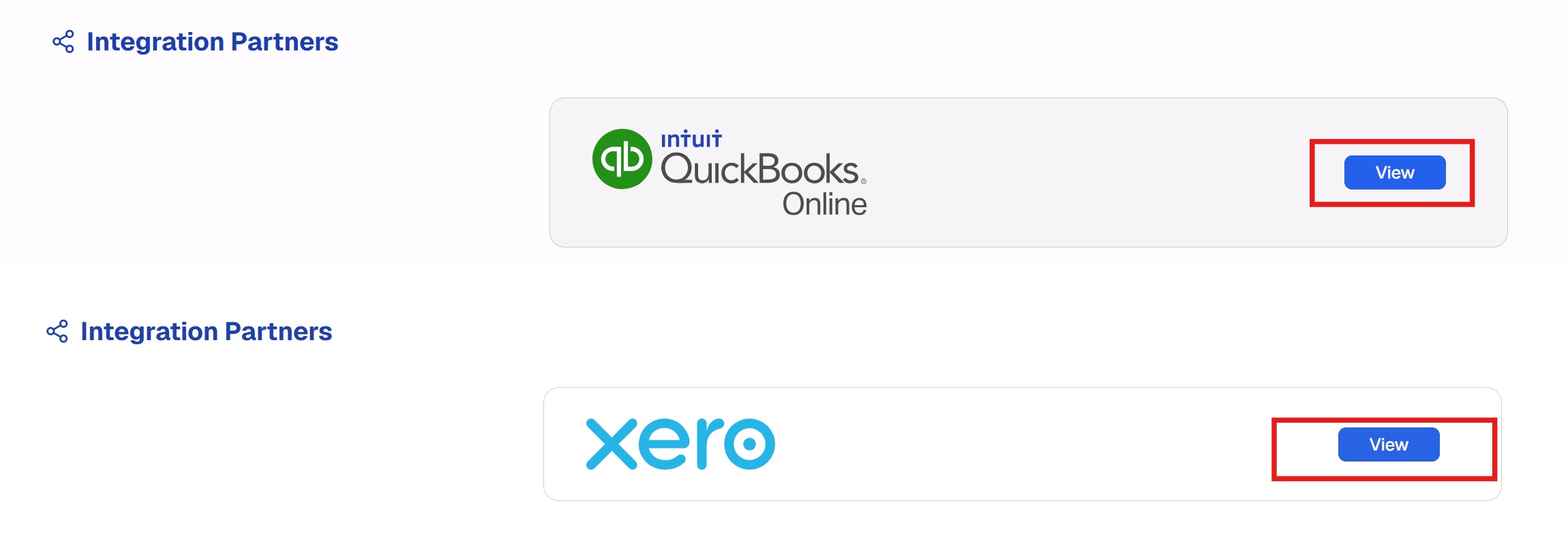
Click View next to your Xero Integration (QuickBooks Online if you are using QuickBooks).
Go to the Integration Data tab, make sure Sync Bill Attachments is turned on, and click Update Mapping.
.png)
With the Sync Bills as Attachments toggle on, approved bills are pushed to your accounting system with the invoice attached. In Xero, the file is available from the paperclip/files icon in the top-right corner of the bill. In QuickBooks Online, it appears in the Attachments section located at the bottom of the bill.